
NUS-ID - Getting Started
Please complete the following steps before first login.
1. Change your Password
- Visit https://exchange.nus.edu.sg and select Change NUS-ID Password.
2. Register for Multifactor Authentication (MFA)
Protect your NUS-ID with Microsoft MFA, a second-factor authentication to ensure that your login is validated.
- Install Microsoft Authenticator app on your Android / iOS device.
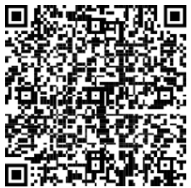
To install the Authenticator app for Android device, scan the QR code below.
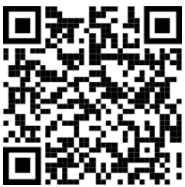
To install the Authenticator app for iOS device, scan the QR code below.
- From your computer browser, login to https://aka.ms/mfasetup. When prompted, enter your ID in this format, <NUS-ID>@nus.edu.sg, and password.
- Click Add sign-in method, select Microsoft Authenticator, then click Next until you reach the QR code.
- On Microsoft Authenticator app, select (+) in the upper right corner. Select Work or school account > Scan a QR code > and scan the QR code on your computer screen.
- Verify that your account is added to Authenticator, then click Next on your computer to trigger a push notification.
- On your phone, enter the number displayed on your computer and click Yes.
- On your computer, click Next on the “notification approved” screen and complete the registration by clicking Done.
3. Register for Symantec Two-Factor Authentication (2FA)
Install Symantec 2FA to complement the use of Microsoft MFA for secure access to the eServices.
- Visit Two-Factor Authentication to complete your enrolment.
Note: Symantec 2FA will be retired in the near future.
Should you have any question or require any assistance, please write to itcare@nus.edu.sg.
