
Secure File Removal
When you delete a file, the file references are deleted and the space formerly occupied by the file is marked as being free. However, the actual file data remains intact on the media until the space is claimed by some other file (at which point the original data is overwritten). Emptying the recycle bin does not guarantee the files are not recoverable.
To ensure sensitive files are not recoverable, we need to securely erase them with specialized tools. These tools will remove the sensitive data by rewriting several times over the space allocated to the file.
This guide shows you how to securely erase your files with Eraser, an open source tool. The example here uses Eraser v5.8.7. However, older and newer versions of Eraser software are known to have similar features.
More information on Eraser can be found at http://eraser.heidi.ie/
Download Eraser
Click http://eraser.heidi.ie/
Click “Download” (top right hand corner)
Click the latest stable version
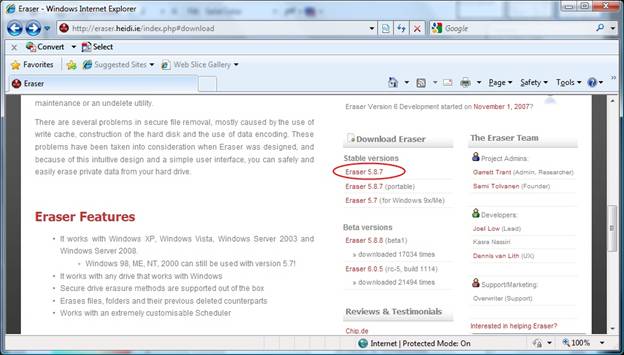
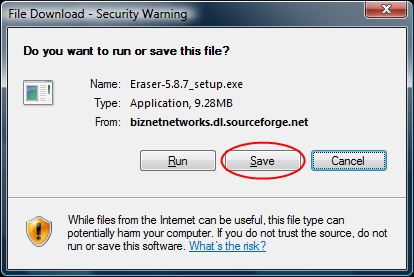
Click “Save”
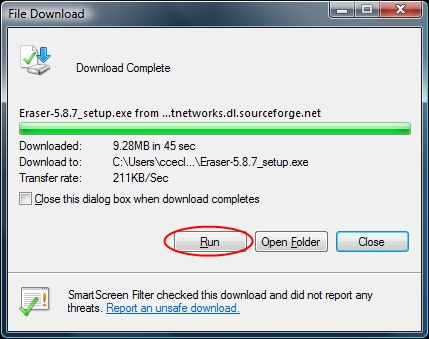
Click “Run” to start the Eraser setup when download is complete
Click on “Next” when necessary to step through the installation accepting the defaults, followed by “Install” Uncheck “Run Eraser” and Click “Finish”
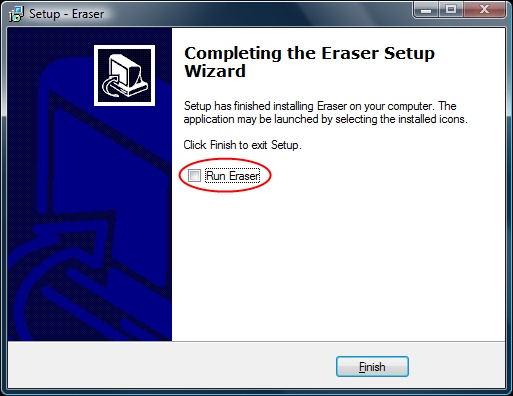
You have now successfully installed Eraser.
Securely Erase Individual Files and Folders
Open Windows Explorer and browse to the files or folders which you want to securely erase. Select those files or folders which you want to securely erase.
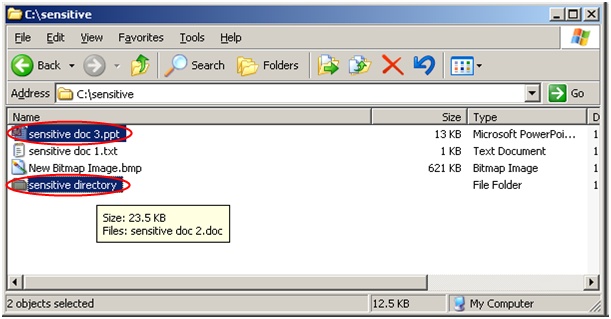
Click “File” from the menu and select “Erase”
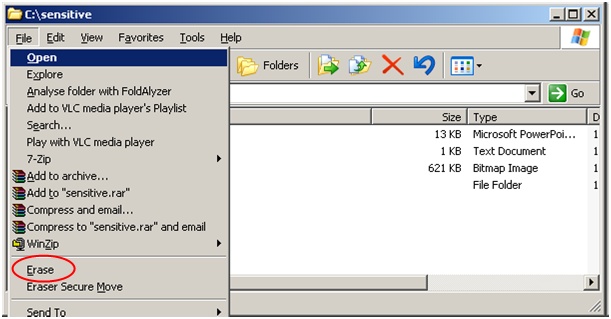
A window will pop-up asking for confirmation to erase your selected files. Click on “Options”.
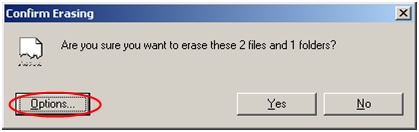
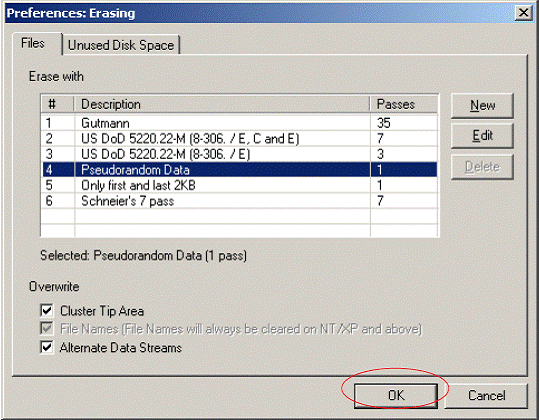
A window will pop-up showing you the list of methods to securely erase the files/folders. Select the method to which you want to erase the files and click “OK”. Note that with more passes, it is more secure but takes a longer duration to erase.
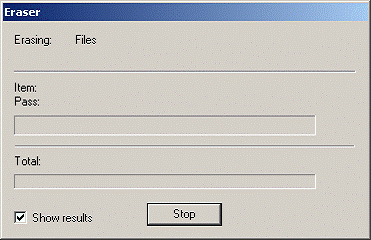
A window will pop-up showing the progress of the erasing operation. Wait for the operation to complete.
After the erasing operation complete, a window will pop-up showing a report of the erasing operation. Click “Close” to end.
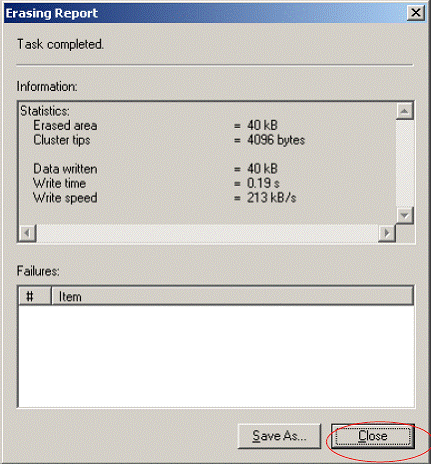
You have now securely erased a file.
