Mac Folder Encryption
Creating an encrypted folder in Mac
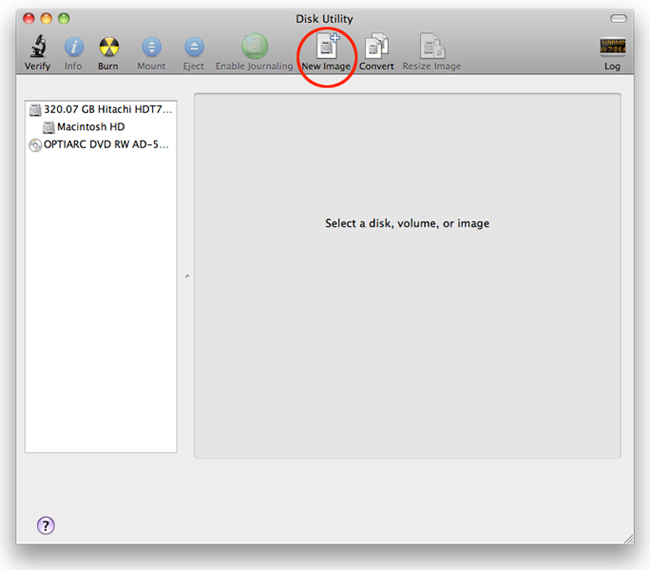
- Run Disk Utility from Applications -> Utilities.Click on “New Image”.
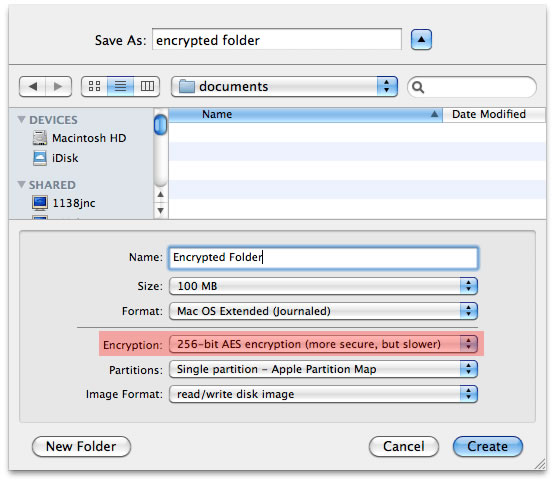
- Choose a filename and location for the encrypted folder.Choose a name to describe the folder.
Choose a suitable size for the folder.
Choose “256-bit AES encryption” option for Encryption.
Click on Create.
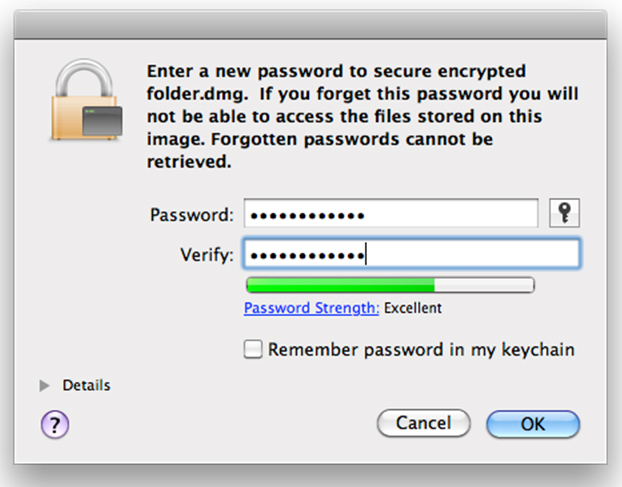
- Specify a STRONG password and enter it again for verification.Unclick “Remember password in my keychain” for enhanced security.
Click on OK when done.
Wait for the process to complete.
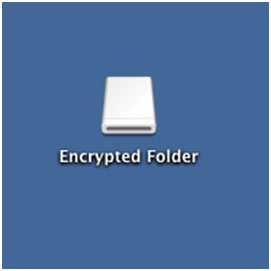
Once completed, a new icon will be created.
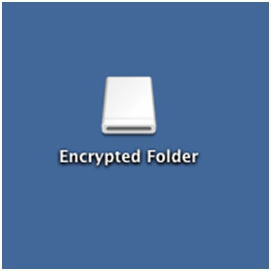
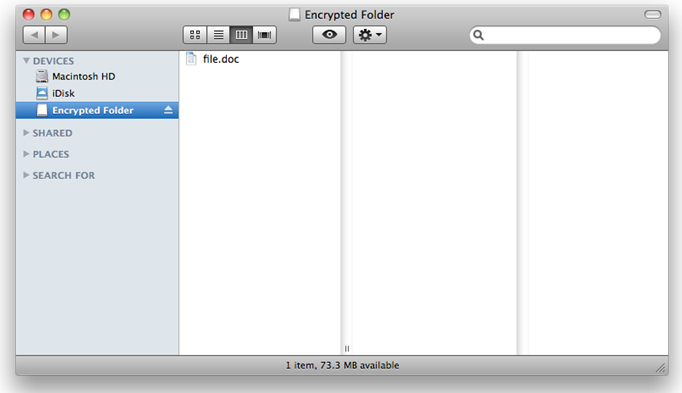
- Open Finder and locate the encrypted folder on the left pane.All files placed in this folder will be encrypted.
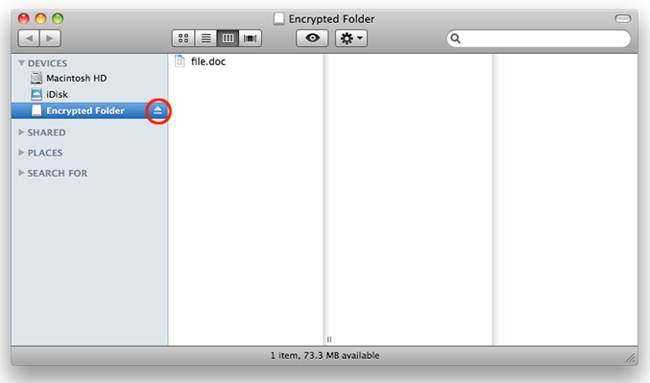
- When you are done with your work, click on the “Eject” icon beside the Folder to prevent others from accessing it.
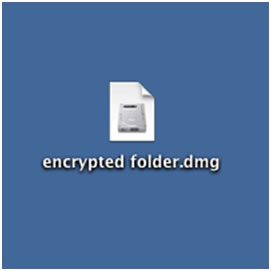
Note that the encrypted folder will change its appearance. In this state, access is only possible with the right password.
Viewing the contents of the encrypted folder
To view existing content, or to add new content to the encrypted folder, double-click on the dmg file and enter the password which was used to create it.
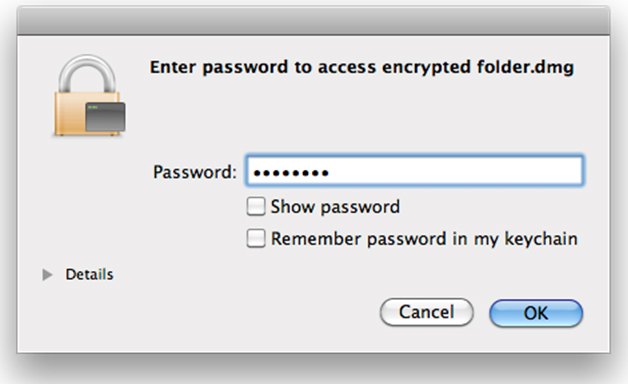
The icon will change to the one shown below. Repear the steps above to place/remove content from the encrypted folder.