
For Windows
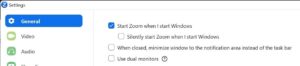
1. Log in to Zoom desktop client
2. Click your profile icon at top-right and choose Settings
3. Under “General”, tick Start Zoom when I start Windows and Silently start Zoom when I start Windows.
For Mac
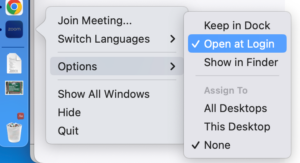
1. Right-click Zoom’s icon at the Dock
2. Under “Options”, tick Open at Login
Zoom allows you to sign in to one computer, one tablet, and one phone at the same time.
If you sign in to a second device of the same type, you will be signed out automatically from the first device of that type.
For example, if you are already signed in to a Windows desktop, and you are also trying to sign in to a Windows laptop at the same time, you will be signed out of the desktop.
Launch your Zoom desktop client or mobile client. If you see the Phone icon in the main screen, you can start using Zoom Phone.
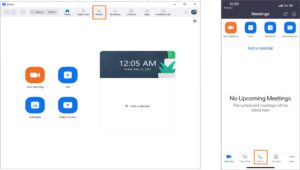
Yes, you can. Download and install the Zoom app from iOS App Store (for iPhone/iPad) or Google Play Store (for Android) and you can Zoom Phone within the app.
Your colleagues can only call your Zoom extension number from another Zoom extension. Calls cannot be made from Teams to Zoom Phone or vice versa.
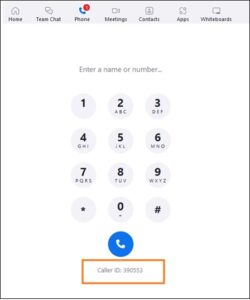
1. Launch Zoom desktop or mobile client
2. Click on the Phone tab
3. Your extension number is displayed below the dial pad
There are two types of Zoom Phone numbers:
6-digit number
For internal calls only. By default, all staff will be given a 6-digit extension for internal calling.
8-digit number (6516xxx or 6601xxxx)
For internal/external calls. For staff who needs to make external calls, the department phone admin would raise a BOSS request for a DID number and the staff Zoom Phone will be updated with a 8-digit number.
1. Log in to NUS Zoom portal at https://nus-sg.zoom.us
2. On the left panel, click Phone
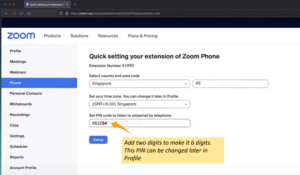
3. (For user logging in to Zoom portal for the first-time) Perform a one-time setup by adding two digits to the PIN code field (ie. make it a 6-digit PIN), and click Setup.
4. Click the Settings tab on top
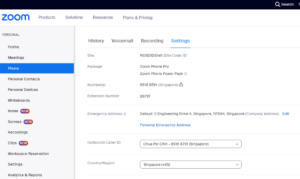
5. Scroll down and you can find settings for :
- Call handling (Device ringing, Business Hours, Voicemail,
- Call delegations
- PIN Code (for hardphone)
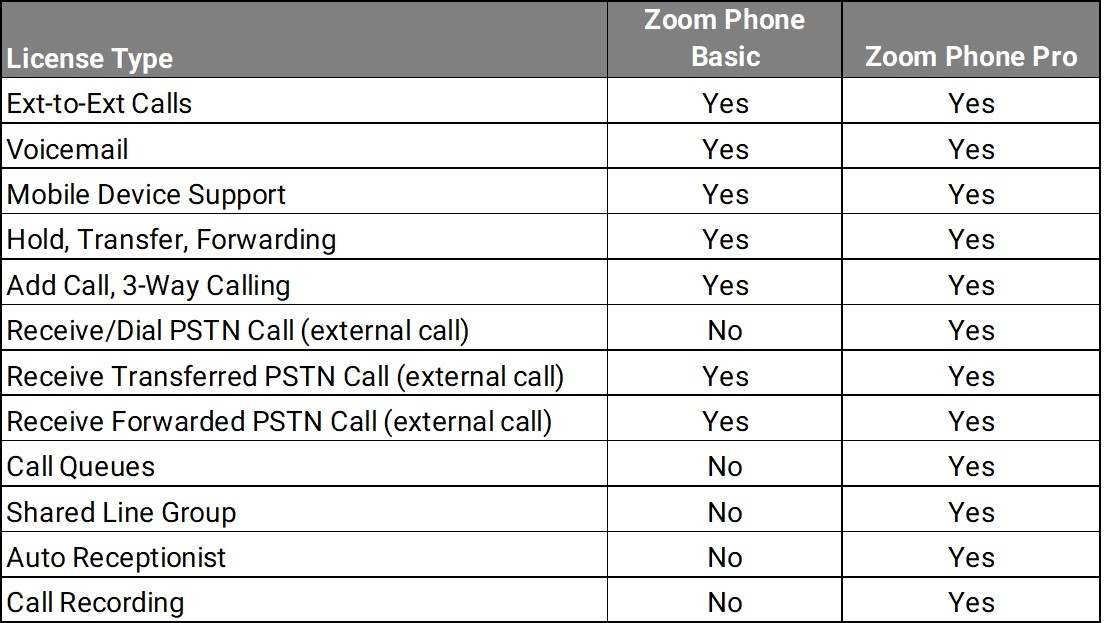
There are two main types of Zoom Phone License:
- Zoom Phone Basic : For basic extension to extension calling.
- Zoom Phone Pro : For Zoom Phone that requires add-on features including DID number, Call Queue or IVR.
Refer to the table for the complete list of differences:
You can do so by using call flip:
1. Place your call on hold for your first device, using the in-call controls. The other party will hear hold music while they are on hold.
2. On your second device, launch Zoom application and click the Phone icon
3. Click the Lines tab to see the call you have placed on hold.
4. Click the hold icon to answer the call.
See Zoom’s Using Call Flip for details.
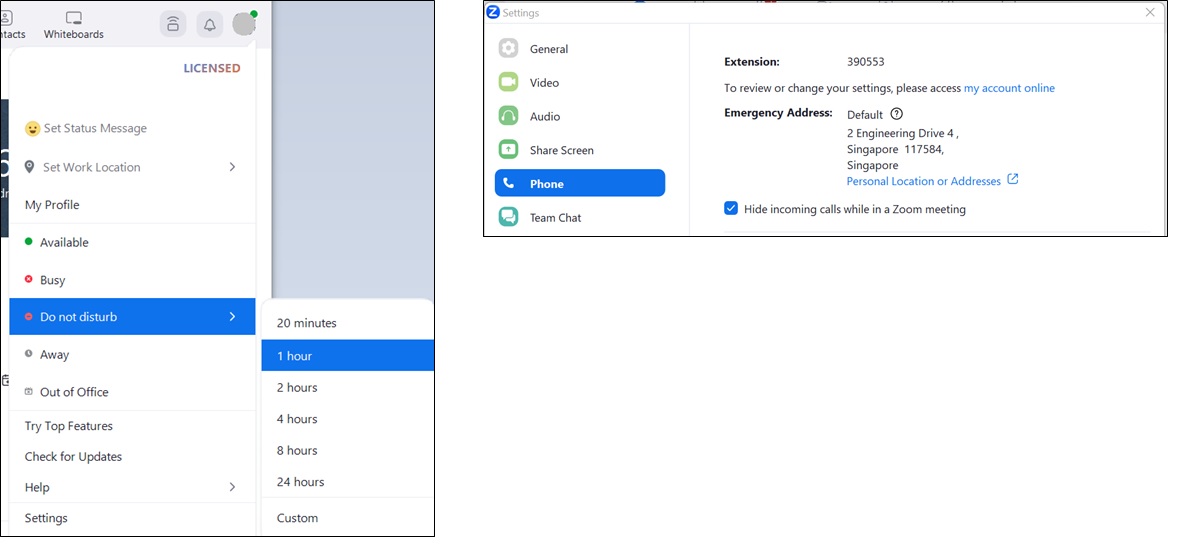
To temporarily stop incoming calls from ringing, set your Zoom status to Do Not Disturb and send the call to your voicemail.
1. Launch the Zoom desktop client
2. Click your profile icon on top-right
3. Set your status to Do Not Disturb and choose the duration
To always turn off incoming calls during Zoom meeting:
1. Launch the Zoom desktop client
2. Click your profile icon > Settings > Phone
3. Tick the selection “Hide incoming call during the Zoom meeting” under your Zoom client profile
1. Sign in to NUS Zoom Portal at https://nus-sg.zoom.us
2. Click on Phone > Settings
3. Scroll down to the Call Handling section and set the following:
- Business Hours – set the business hours for calls to ring
- When a call is not answered – select Forward to voicemail/videomail to send all calls to your voicemail during closed hours.
If you are in a Zoom meeting on your computer, you can still make a Zoom Phone call:
- When making the call from the same computer, your audio will be automatically disconnected from the Zoom meeting for the call. You will need to reconnect to the audio of the meeting if you choose to re-join the meeting after your call
- If you make the Zoom call from another device (e.g. your mobile device), your Zoom meeting will not be affected
During your call, click the video camera icon (Meet) on the bottom row of the in-call control buttons to elevate it to a Zoom Meeting.
See Zoom’s Elevating or Inviting a Phone Call to a Zoom Meeting for more information.
If Zoom application is running on the foreground on your phone, the phone will always ring when there is an incoming Zoom call.
To prevent it from ringing when you phone is set to silent mode, you could either minimize the Zoom app for it to run in the background or simply lock your phone.
There is currently no retention policy set to automatically delete old recordings, voicemail, or SMS. All three of these features have unlimited storage available.